Getting Started with T1000E Card
Follow this guide if your SenseCap T1000E is brand new and never had SofRF instaled.
...and if it had it installed before skip to Step 3.
Step 1: Download Required Files
First, download both files you'll need for the complete setup:
1.1 Download Bootloader Flasher Utility
📥 Download Bootloader Flasher Utility1.2 Download SoftRF Firmware
Download this now so it's ready when you need it in Step 4:
📥 Download SoftRF Firmware for T1000E version 008 (New!)1.3 Download SoftDevice update
Download SoftDevice update, it needs to be flashed only once:
📥 Download SoftDevice update (New!)Step 2: Flash the Bootloader
2.1 Connect Your Device
Use a USB cable to connect your T1000E SenseCap to your computer.
2.2 Run the Bootloader Flasher
Double-click the downloaded bootloader_flasher.exe file.
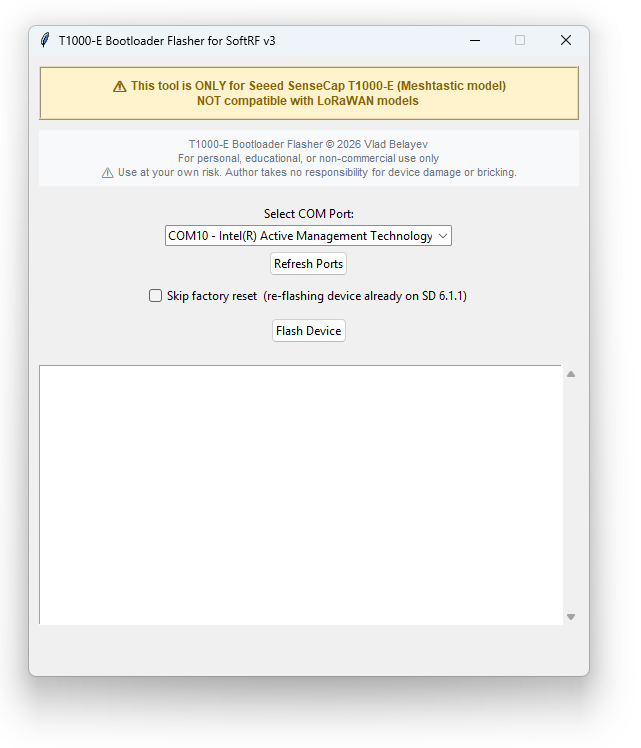
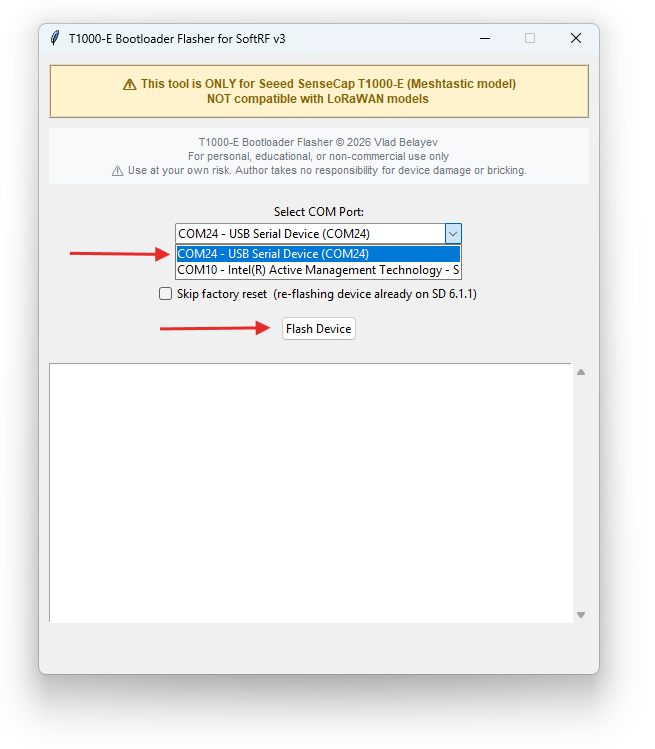
2.3 Select COM Port and Flash
- Select your device's COM port from the dropdown menu
- Click the "Flash Device" button
- Wait for the flashing process to complete
Step 3: Update the SoftDevice
After the bootloader flash completes successfully, a File Explorer window will automatically pop up showing the T1000-E drive.
- Power off the device
- Press & hold the button
- Quickly connect the USB cable TWICE (double-tap connection)
- The
T1000-Edrive should appear
Struggling with entering DFU mode manually? If SoftRF is already installed on your device, why not use the SoftRF Configurator? The Status page has an "Enter DFU mode" button. More info on how to use the SoftRF Configurator is here.
3.1 Check Bootloader Version
Open the file INFO_UF2.TXT on the T1000-E drive. If it says something similar to below:
UF2 Bootloader 0.9.2 lib/nrfx (v2.0.0) lib/tinyusb (0.12.0-145-g9775e7691) lib/uf2 (remotes/origin/configupdate-9-gadbb8c7)
Model: Seeed T1000-E for Meshtastic
Board-ID: nRF52840-T1000-E-v1
Date: Oct 28 2024
SoftDevice: S140 6.1.1
...your SoftDevice needs updating.
3.2 Copy SoftDevice Update to Device
Drag and drop (or copy) the SoftDevice update update-t1000_e_bootloader-0.11.0_nosd.uf2 file you downloaded in Step 1.3 into the T1000-E drive window.
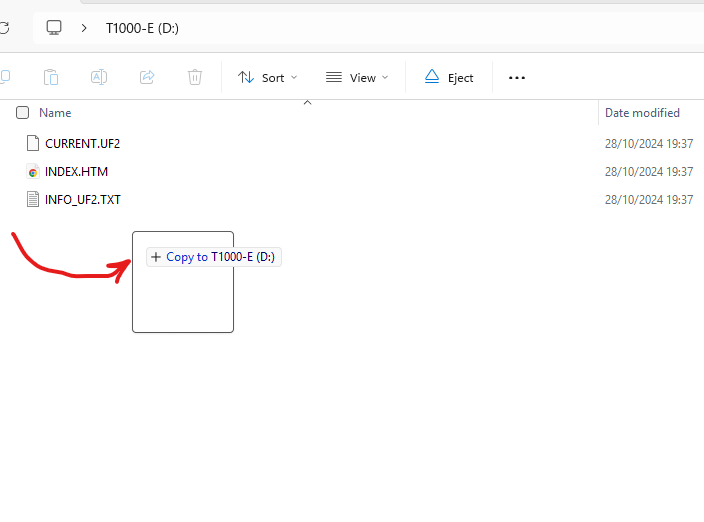
3.3 Verify the Update
After the update completes, the device will reboot itself and the T1000-E drive will re-open.
Check the INFO_UF2.TXT file again. It should now say:
UF2 Bootloader 0.11.0
Model: Seeed T1000-E for Meshtastic
Board-ID: nRF52840-T1000-E-v1
Date: Jul 17 2026
SoftDevice: S140 6.1.1
Proceed to the next step.
Step 4: Install the SoftRF Firmware
With the T1000-E drive still open in File Explorer, you're ready to install the firmware.
4.1 Copy Firmware to Device
Simply drag and drop (or copy) the SoftRF firmware SoftRF-VB008-dev.uf2 file you downloaded in Step 1.2 into the T1000-E drive window.
4.2 Complete Installation
Once you copy the firmware file, the device will automatically:
- Install the firmware
- Reboot
- Be ready to use with SoftRF!
Additional Resources
- T1000E Card User Guide — LED codes, button controls, settings file
- WebApp Configurator — Web-based configuration tool
- OGN Device Registration — Register your aircraft ID
- Puretrack Registration — Register on Puretrack
Support This Project
If you found this tool helpful and would like to support continued development:
☕ Buy Me a CoffeeYour support helps maintain and improve these tools for the community. Thank you!